Visual review
Check subtitle text, timing, and translation in a local browser workbench before publishing.
Visual review is the human checkpoint before you serve the video. OpenBBQ opens a local workbench in your browser where you watch the video, read every subtitle line, fix text and timing, work through the issues it flags for you, and mark each line as checked. Nothing is uploaded — the workbench runs entirely on your own computer.
Install the editor
The editor is an optional extra. Install it once:
uv tool install 'openbbq[review]' --forceOpen a workspace
openbbq review --workspace workspaces/demo --to zhYour browser opens on a local address that only your own computer can reach. Useful options:
--to zh— open the translation worksheet for that language: the file that holds one translation per subtitle line. Skip it to start in source-only mode, with just the original lines; you can pick a language inside the editor too.--port PORT— use a different port when the default one is busy.--no-open— start the editor without opening a browser tab.
The workbench at a glance
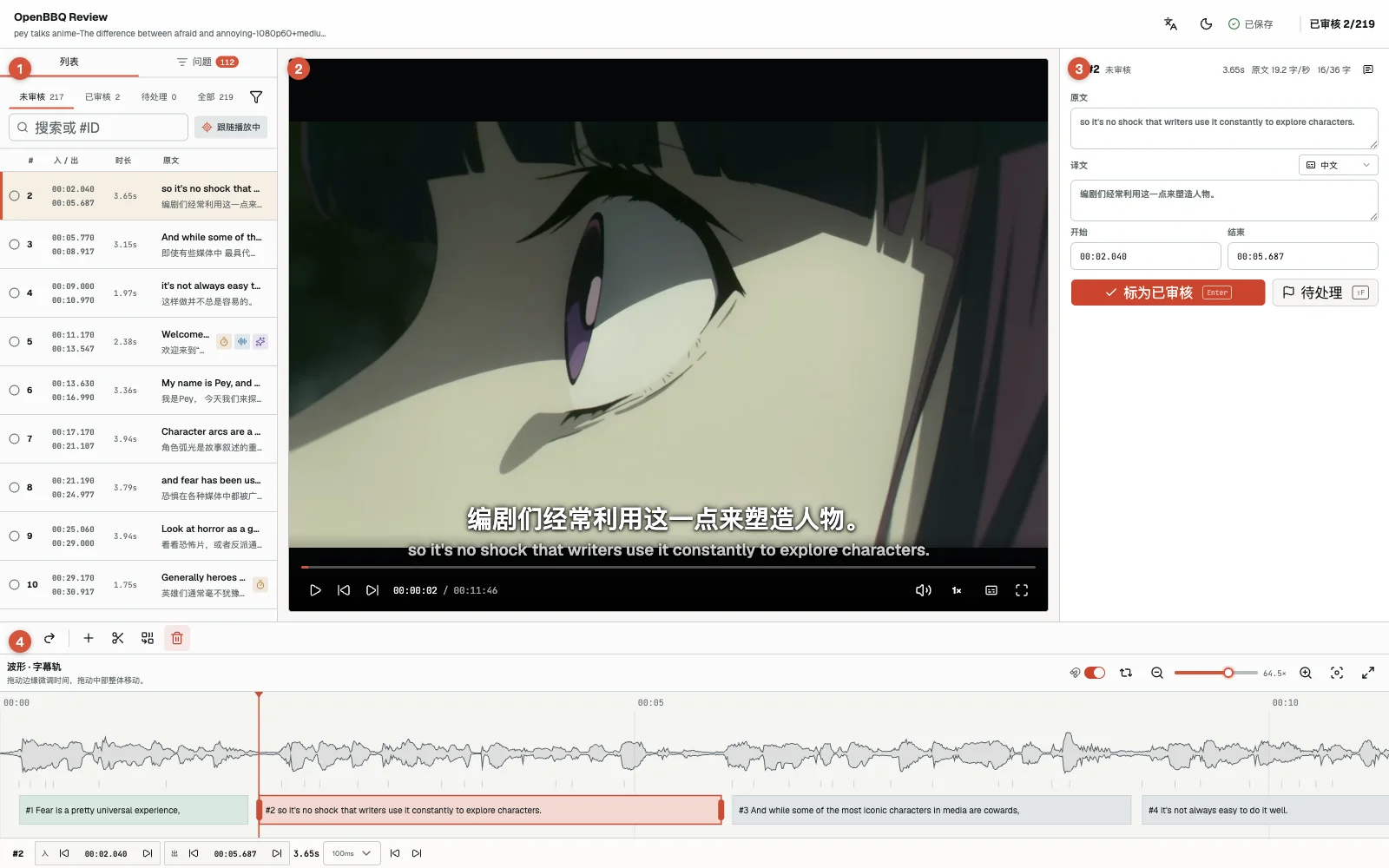
One screen, four zones (drag the dividers to resize; widths survive a reload):
- Cue list — every subtitle line, with filters, search, and two tabs: List and Issues.
- Media player — the video (or audio), with always-visible controls and a live subtitle overlay.
- Cue editor — the current line's source, translation, timing, and note, plus its issue cards.
- Waveform & cue track — the whole timeline: waveform for finding pauses, blocks for subtitle lines.
The cue list: find the lines to look at
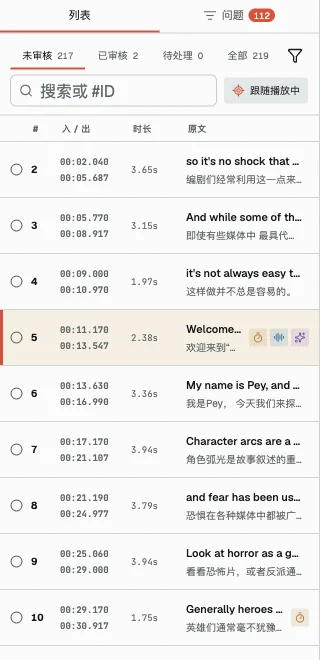
- Filter by status (unreviewed / reviewed / flagged / all) or by quality conditions like missing translation or over budget; the search box takes text and
#ID. - Small icons at the end of a row are that line's issues — term, timing, budget, low-confidence words, agent suggestions. The shape says the kind, the color says the severity.
- During playback the selection tracks the playhead. Scrolling the list only detaches its auto-scroll (an amber Resume follow button appears) — the selection itself is unaffected.
- Shift-click for a range, ⌘/Ctrl-click for a set; a batch bar appears at the bottom.
The issues view: work down a list of problems
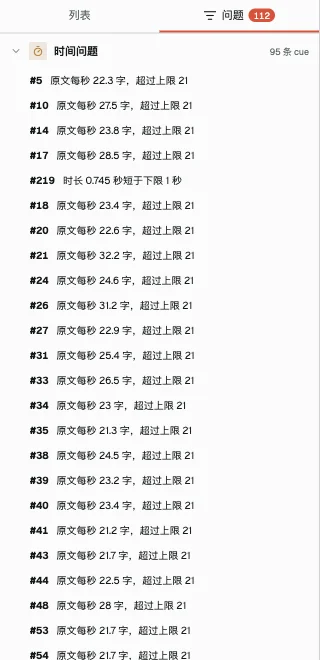
Switch to the Issues tab and every flagged problem is grouped by kind — timing, terms, budget, low-confidence ASR, agent suggestions. Open a group to see the cues involved; click a row to jump straight to it. Fixed, dismissed, and rejected items collect under a collapsed section at the bottom of each group, ready for audit.
The player: what you see is what viewers get
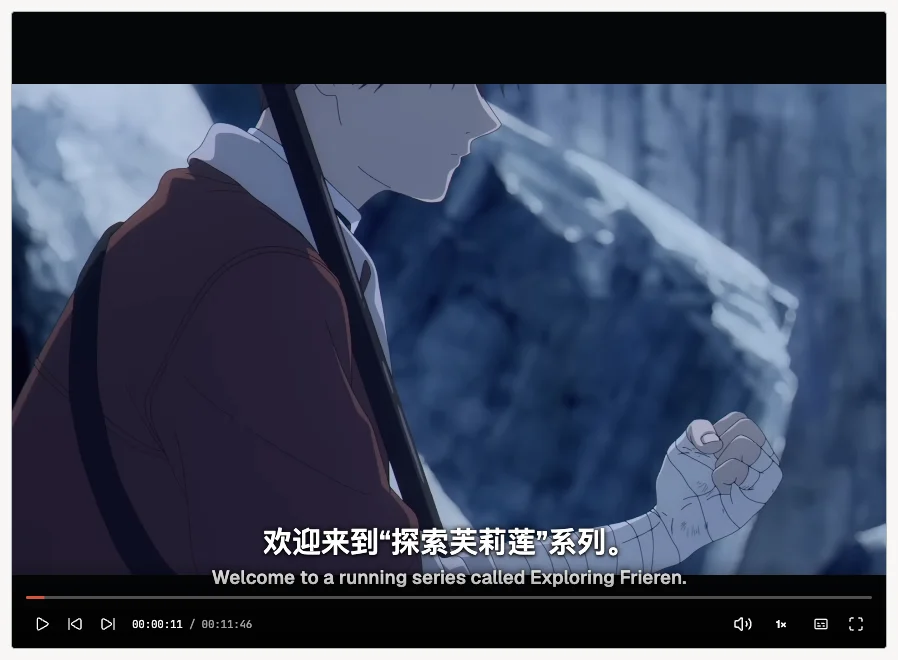
- Seek, volume, playback speed, subtitle mode (bilingual / source / target / hidden), and fullscreen live on a permanent control bar — no hover required.
- The overlay follows the playhead strictly: in the gaps between cues the picture is clean. The preview is what a viewer would see.
- While playing, the selection follows the current cue and freezes the moment you pause. Clicking any cue during playback pauses the video and lands you there — the selection is never yanked away from under you.
The cue editor: everything about one line
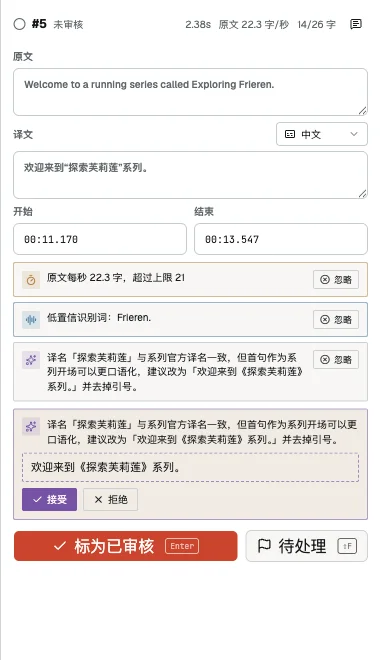
- Edit source and translation in place; they autosave after about half a second. Start/end use
MM:SS.mmminputs — invalid input or a start that isn't before the end gets an inline hint, never a silent write. - The header shows live duration, source reading speed, and the translation's character budget — updating as you type, not after a save.
- Colored cards below are this line's issues: amber for rule warnings (budget / timing / terms), blue for hints (low-confidence ASR words), purple for agent suggestions. Fix the underlying problem and the card disappears on the spot; or Dismiss it — but if you later edit that line, the dismissal is voided and the card returns.
- "Mark reviewed
Enter" and "Flag⇧F" are the main review loop.
The waveform & cue track: the final word on timing

- The small ticks under the waveform are ASR word boundaries; cue edges snap to them while dragging.
- Drag a block's edges to retime it, or its body to move it whole. A plain click only selects — it never edits anything.
- Scroll to pan, use the right-hand slider to zoom. Splitting snaps its default cut point to the nearest word boundary.
Three ways to work through a draft
Line by line (the main loop): click a line, replay its segment (loop it if needed), fix it, press Enter to mark it reviewed and jump to the next unreviewed line. Shift+Enter saves and moves on without marking. Enter all the way down.
Continuous pass: play through at 1.25× and pause when something looks wrong — the editor is already on the line you just heard. Fix it, press Space, keep going. The selection always tracks the playhead, so you never hunt for the line.
Issue-driven: sweep the issues view by kind — "do all the term warnings first" — jumping from one problem line to the next.
Agent suggestions: it flags, you decide
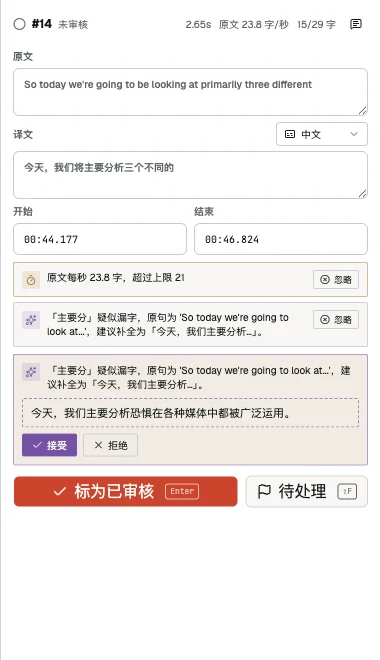
Purple cards are change proposals left by the agent. Click the proposed text to load it into the editor and keep editing; Accept applies it as final content (one atomic write, one ⌘Z to undo); Reject files it under the issues view where you can always bring it back. If the line has been edited since the suggestion was made, the card warns that it may be stale — but the decision is always yours.
Suggestions come from two sources: ones the agent left behind while translating (zero extra cost), and an explicit pre-analysis pass before you start:
openbbq review --prepare --workspace workspaces/demo --to zh
# hand the printed analysis request to your agent, then:
openbbq review --prepare --apply suggestions-response.json --workspace workspaces/demo --to zh
Pre-analysis only happens when you ask for it — users who skip review pay nothing. See Working with agents.
Find & replace: preview first, then commit
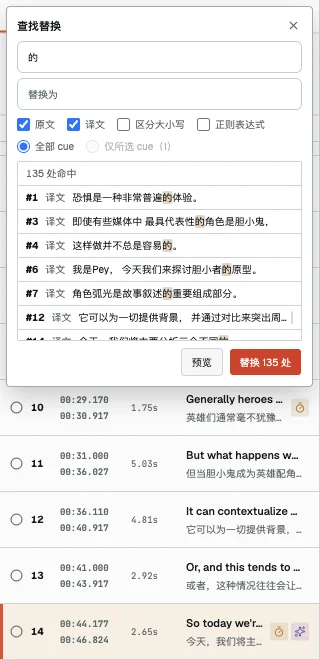
Press ⌘F. After typing a search you must preview first — it lists exactly which cues match with the matched text highlighted, and only then does the Replace N button enable. The whole batch is one atomic write, so a single ⌘Z reverts it all. Case sensitivity and regular expressions are supported; the scope can be source, translation, or just the selected cues.
Batch operations: handle a whole row set at once
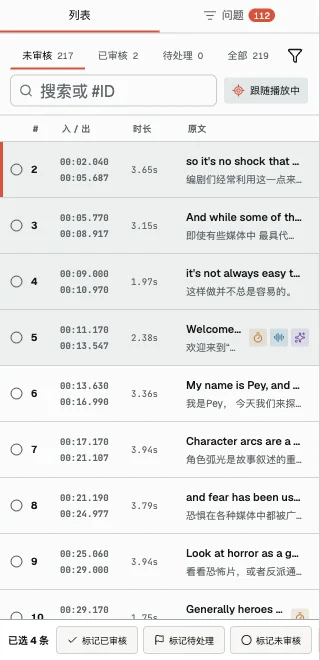
With several lines selected (Shift or ⌘/Ctrl-click), the batch bar can mark them reviewed / flagged / unreviewed, delete them (with confirmation), or confine a find & replace to just those lines. Every batch is all-or-nothing: if anything conflicts midway, not a single line is written.
Grow the glossary as you go: fix once, clear everywhere
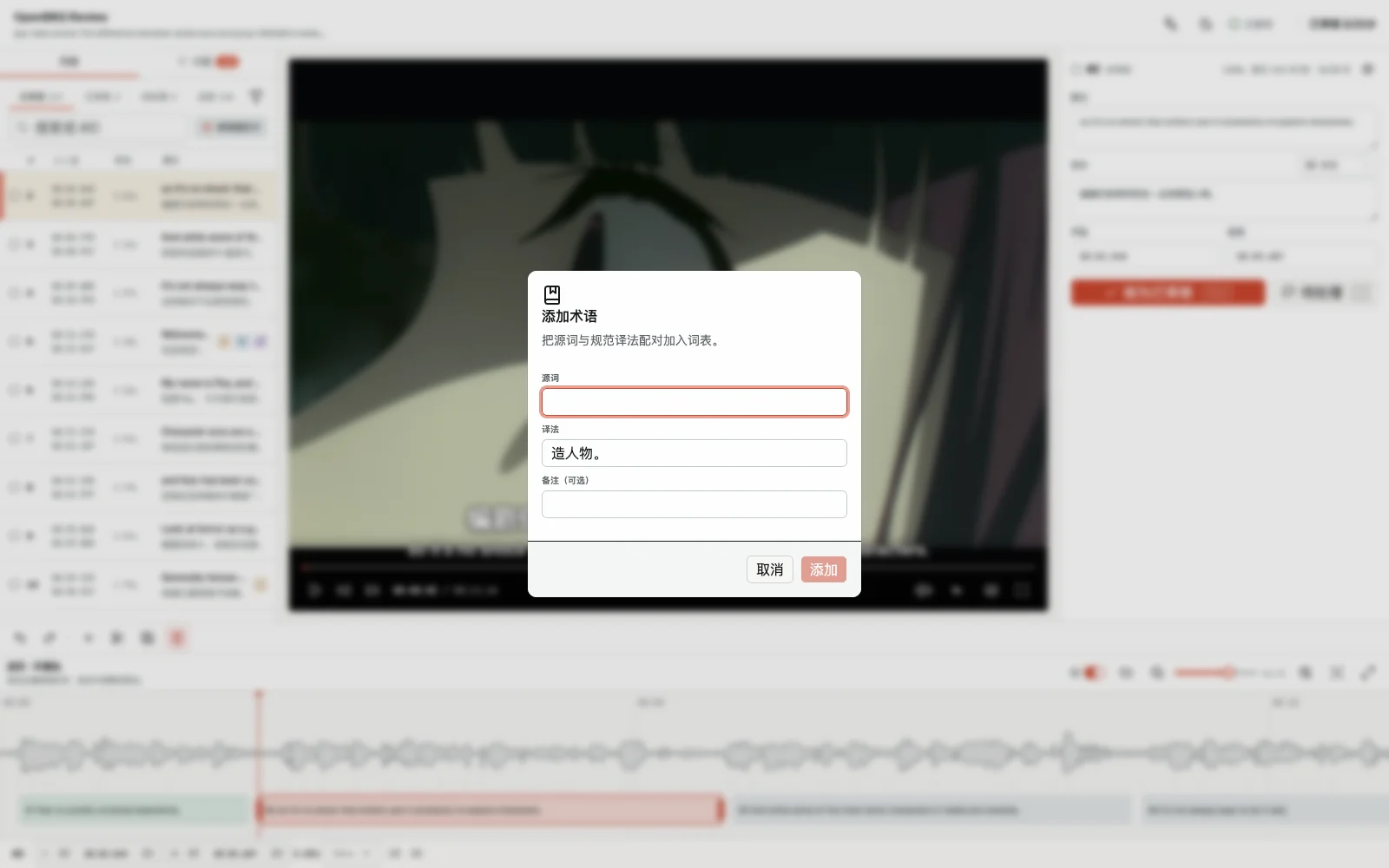
Select a word in the source or translation and an Add term action floats up. Submit the source term and its standard translation, and the pair lands in the workspace's bound glossary — every related term warning across the whole file clears immediately. You can also start from a term warning card's "+ Add new term". The full glossary story lives in Glossaries.
Shortcuts: one table, always current
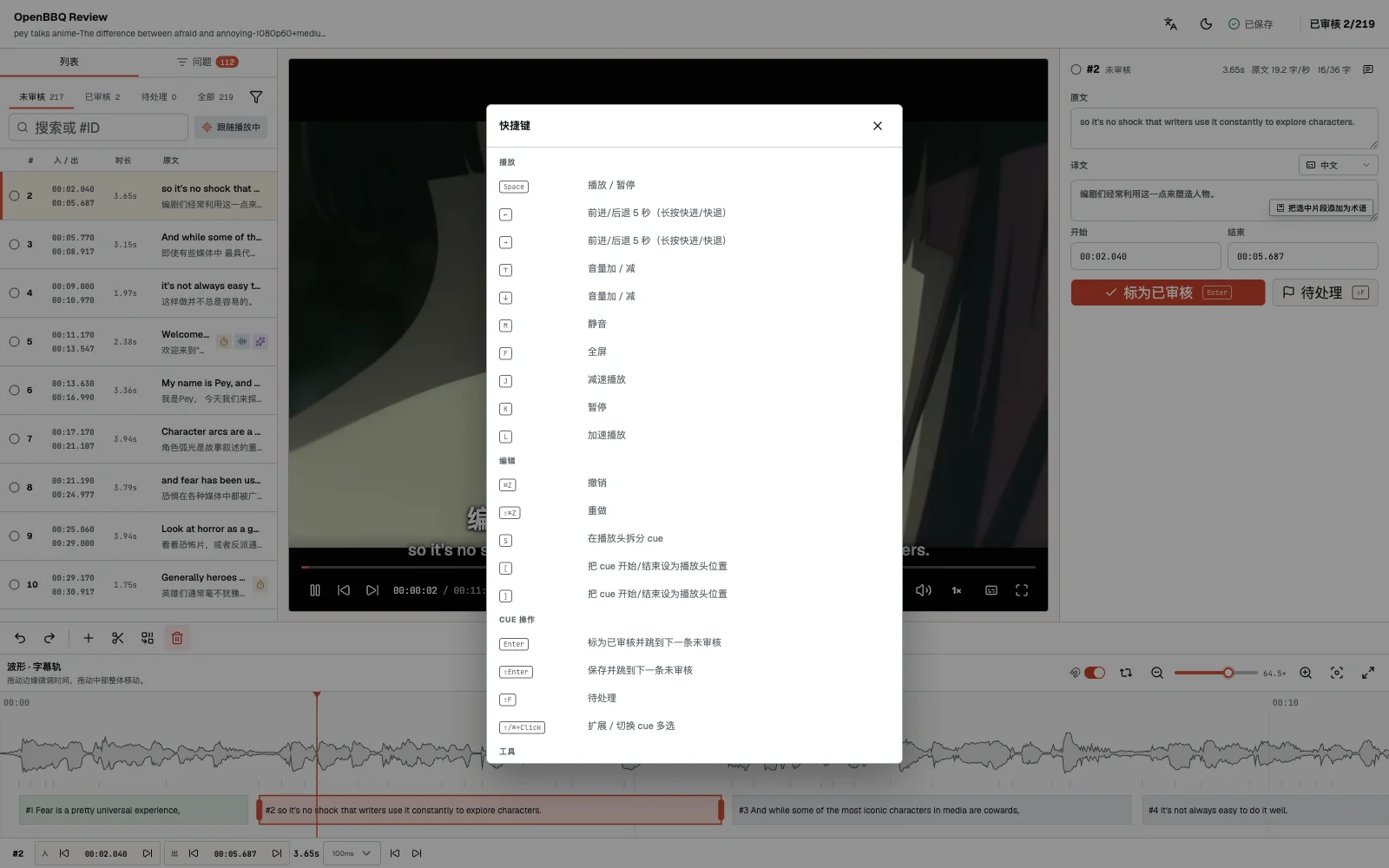
Press ? anytime to open this table (it's generated from the same source that executes the keys, so it can never drift). The everyday set:
| Key | Action |
|---|---|
Space | Play / pause |
Enter | Mark reviewed, jump to next unreviewed |
Shift+Enter | Save only, jump to next |
J / K / L | Back 2s at slow speed / pause / forward at 1.5× |
[ / ] | Set current line's start / end to the playhead |
S | Split the cue at the cursor |
⌘F | Find & replace |
⌘Z / ⇧⌘Z | Undo / redo |
When everything is reviewed
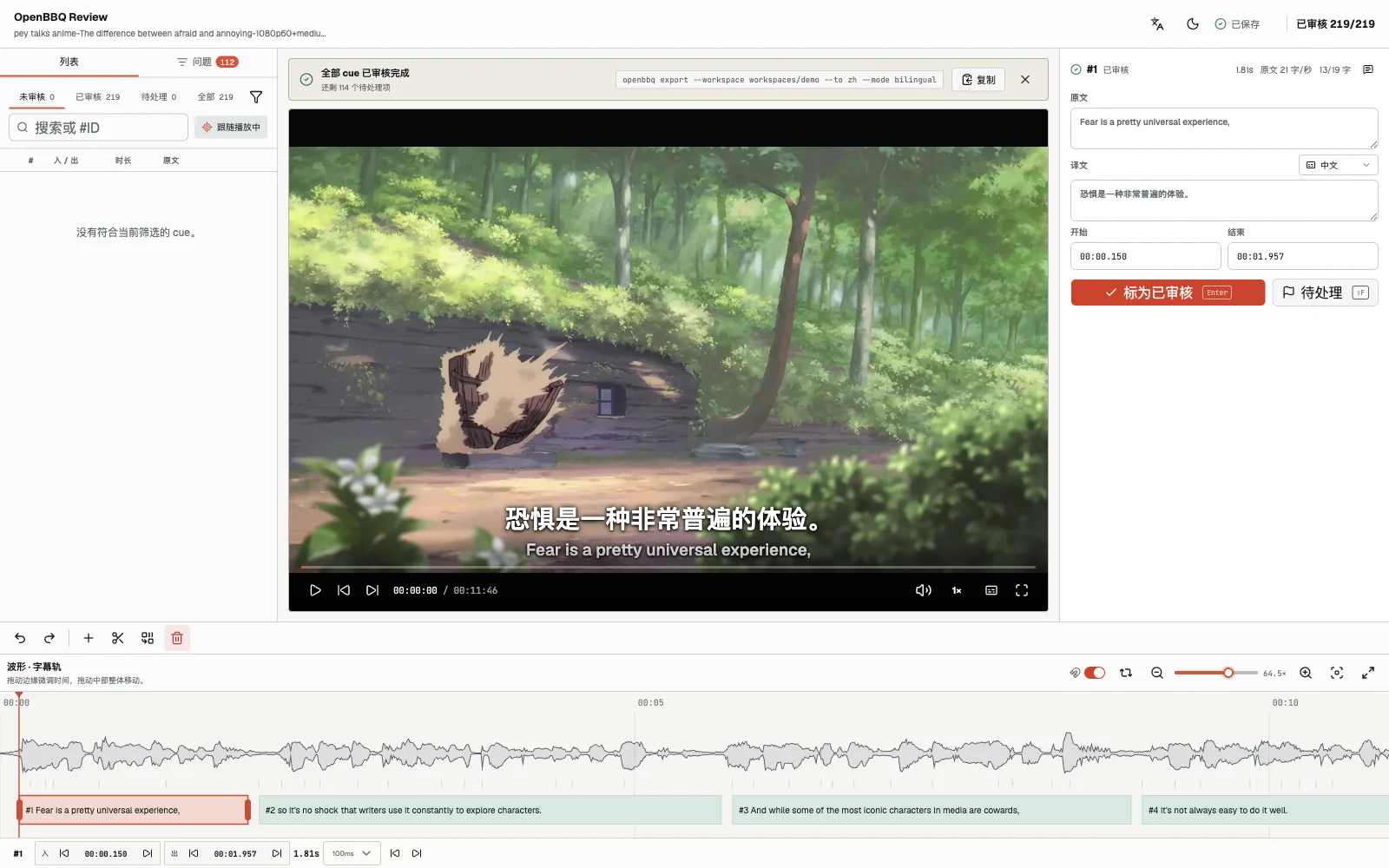
Once every line is marked reviewed, a quiet banner appears at the top: how many open issues remain, and the next-step export command with one-click copy. Exporting stays a terminal job — the workbench just hands off.
Edits save themselves
Text edits autosave to cues.json (the subtitle lines) and translation.zh.json (the worksheet) — the same files every terminal command reads. There is no save button and no second copy to keep in sync.
You can split one line into two, merge lines, insert or delete lines, and undo or redo any of it. When a line is right, mark it reviewed; when something needs another look, flag it and move on.
Your progress lives in review.zh.json — or review.source.json in source-only mode.
One editor at a time
Only one editing session can hold the workspace lock at a time. Finish or close one openbbq review before starting another on the same workspace.
Subtitle files wait for export
The editor never touches SRT or ASS files. They stay derived files — generated from the workspace, not edited in place. After you finish editing, regenerate them explicitly:
openbbq export --to zh --workspace workspaces/demoSee Export and burn.
The review gate
Once a review.zh.json exists, OpenBBQ expects the review to be finished: target and bilingual export stay blocked until every line in that scope is marked reviewed. Reopen the editor to close the remaining lines:
openbbq review --to zh --workspace workspaces/demo--allow-unreviewed at export time is for deliberate drafts — it lets the export through without marking anything reviewed. For where it sits in the pipeline, see Quality gates.